 Seamfold
A feed planner that needs no account
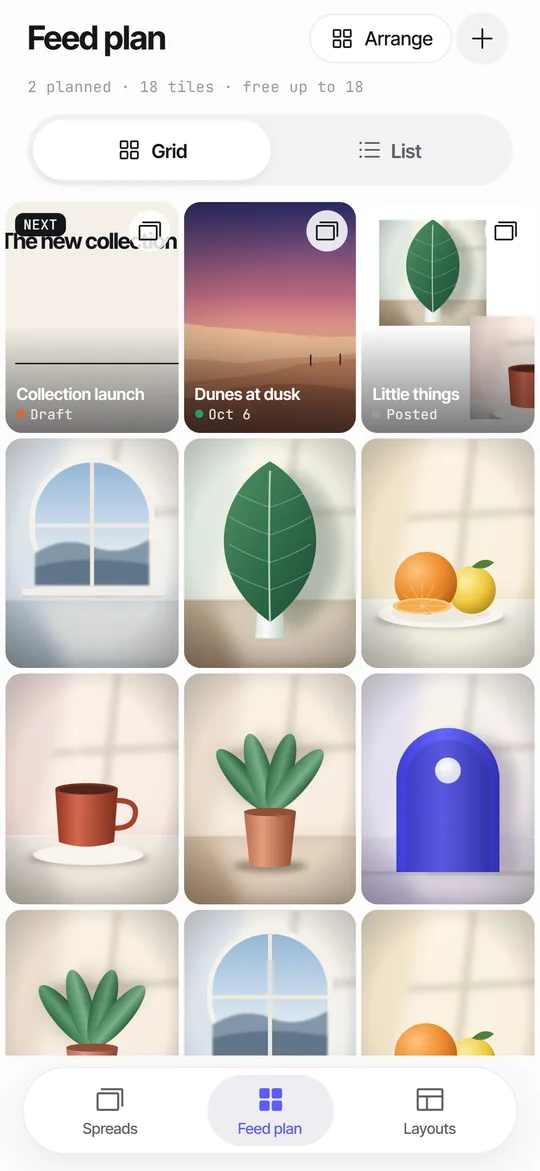
You can plan a grid without creating an account if the planner stores everything on your iPhone. A useful local planner shows your upcoming covers next to posts you already have in 3:4 tiles, and keeps a planned day, a status and a caption draft for each post.
Coming soon to iPhone
What does a feed planner actually do?
It answers one question: how will the next post look next to the last nine? The rest is bookkeeping. A planner holds your future covers in a grid, lets you reorder them and remembers when each one should go out and what the caption says.
Which ways of planning a feed are there?
Four approaches cover almost everyone: a notes page, a spreadsheet, a cloud scheduler and a local planner app. They differ in two things, whether you can see the grid and whether anything leaves your phone.
| Method | See the grid | Needs an account | Where your pictures live |
|---|---|---|---|
| Notes or paper list | No, just names | No | Nowhere, only titles |
| Spreadsheet with thumbnails | Roughly | Often a cloud login | In the spreadsheet service |
| Cloud scheduler | Yes | Yes | On the provider's servers |
| Local planner app | Yes, in 3:4 tiles | No | On your phone |
Why would you avoid accounts and cloud sync?
Many planners ask you to sign in and upload your pictures so they can preview and schedule. That is a fair trade if you want auto-posting. If you only want to see the grid and draft captions, an upload adds privacy risk and a login for no gain.
A local planner works offline, has nothing to cancel and keeps unpublished work on your phone.
What should a good planner include?
Check a planner against this list.
| Need | Why it matters |
|---|---|
| 3:4 tiles | The profile grid shows 3:4 tiles since 2025, so square previews mislead |
| Posted photos beside planned ones | You judge the rhythm against what is already live |
| Reordering | Moving a post one place earlier is the most common edit |
| Planned day and status | Draft, Ready and Posted keep a month of work organized |
| Caption draft with a counter | Captions are limited to 2,200 characters |
| Local storage | No login, no upload |
How many posts ahead should you plan?
Plan nine to twelve tiles, which is three or four rows. That is about what a visitor sees on a phone before scrolling, and it is far enough ahead to catch two similar covers in a row. Beyond that, plans go stale, because what you post this week changes what the next tile needs.
Treat the plan as a short queue. Fill it, post from the top, then fill it again.
How do you plan a grid on the iPhone?
- Add the photos you already posted so the preview shows real neighbors.
- Add each new post as a cover, a single photo or the first panel of a carousel.
- Look at the grid: alternate light and dark covers, and avoid three similar tiles in a row.
- Drag or move posts earlier and later until the rhythm works.
- Set a planned day and a status, then write the caption draft.
- When the day comes, copy the caption and publish yourself.
A sample plan for one month
Imagine twelve tiles for a food account that posts three times a week. A repeating pattern of three makes clean columns in a 3-column grid, so you plan in groups of three.
- Row 1: a bright carousel cover, a close-up photo, a text cover on a dark background.
- Row 2: a dark close-up, a bright carousel cover, a quiet wide shot.
- Row 3: the text cover moves to the middle, so no column repeats the same look.
- Row 4: repeat row 1 with new content.
- Keep one accent color on one tile in every row, so the eye finds a rhythm.
- Mark the next three as Ready, the rest as Draft.
How does Seamfold handle it?
Seamfold's feed plan is a 3-column grid of 3:4 tiles with a Grid and a List view. Spread tiles show a live render of panel 1, and posted photos are plain tiles. Each plan has a Draft, Ready or Posted status, planned day chips, and a caption draft with a counter and a Copy caption button. The free plan holds 18 tiles and Pro removes the limit.
Everything lives in the app's private storage. Nothing syncs and nothing posts for you. Details are on the feed plan page and the privacy page.
How do carousels fit into the plan?
A carousel takes one tile, and the tile shows its first panel. That is why the cover matters more than any other slide for the grid. In Seamfold a spread added to the plan shows a live render of panel 1, so a change in the editor shows up in the grid the next time you open it.
Panels 2 to 4 are not in the grid at all. They still need the seam check and a swipe test, but the plan only needs the cover to look right in 3:4.
How do you reorder tiles in Seamfold?
Use Arrange for a big shuffle and the long-press menu for a single move. The two paths give the same result, so pick the one that suits the size of the change.
- Open the Feed plan tab and switch to the Grid view.
- Tap Arrange and drag tiles into their new places, then tap Done.
- For one tile, hold it and choose Move earlier or Move later.
- Hold a tile and choose Remove from plan to drop it from the grid.
Which grid rhythms work?
There is no single right answer, but a few patterns keep a profile tidy. Alternate light and dark covers. Repeat one accent color every few tiles. Put busy images between calm ones. With 3-column tiles, a pattern that repeats every three posts creates clean columns.
How do you draft captions ahead of time?
Write the first line first, because it is what people see before they tap more. The caption preview in Seamfold's swipe test shows two lines and a more link, which is a good test of whether the hook survives. Keep the full text under 2,200 characters, the limit that the counter in the plan detail follows.
Hashtags are counted separately in the plan, so you can see at a glance how many a draft carries. When the day comes, tap Copy caption and paste it into the post composer.
Common planning mistakes
- Planning in a square grid when the profile shows 3:4 tiles.
- Forgetting that the cover of a carousel is only its first panel.
- Planning captions in a separate notes app, then losing them.
- Over-planning a month and then ignoring the plan.
How can you tell a grid is off before you post?
Squint at it. If the nine tiles blur into one color, the grid is flat. If one tile jumps out of the others, it is either a deliberate accent or an accident. Use the questions below as a quick review.
- Do three tiles in a row share the same color, subject or background?
- Does a text cover sit directly above another text cover?
- Is the next tile on the plan close to the one you just posted?
- Does the cover still read when it is only a thumbnail wide?
What does a local planner not do?
It does not publish for you, send reminders or sync between devices. If you need scheduling by a service, a cloud planner is the right tool. If you need a place to see and arrange covers, local is simpler and safer.
What happens to your plan if you delete the app?
The plan goes with the app, because it lives in the app's private storage. Panels you already saved to Photos stay in your library, and so do posts on social media. If you only want a clean slate, Erase everything in Settings removes spreads, plan tiles and the photo copies Seamfold keeps. Neither action touches your account, since the app has no connection to it.
Does the first panel look right in the grid?
A planner shows the crop, but you should still check the cover itself. See the 3:4 grid cover guide for how much each ratio loses.
Frequently asked questions
Can I plan my feed without an account?
Yes, with a planner that stores data on the device. Seamfold's feed plan works this way, with no login and no upload.
Does a local feed planner post for me?
No. It prepares the plan and the caption. You publish from the social app yourself.
What is the caption limit?
2,200 characters. Seamfold shows a counter against that number.
Why preview the grid in 3:4?
Because the profile grid shows 3:4 tiles, so square previews hide the crop.
Will my plan sync to another phone?
Not in Seamfold. The plan lives only on the iPhone where you made it.
How many posts should I plan ahead on social media?
Nine to twelve tiles is enough for most accounts. That is three or four rows, which is what a visitor sees first on a phone.
Keep exploring
 Feed Planner That Stays on Your iPhoneA local 3-column grid of planned covers and posted photos, with dates, status and captions.The 3What the 3:4 grid crops from 4:5 and square covers, and how to keep titles inside.Seamfold Privacy PolicyNo account, no analytics. Photos, captions and plans stay on your iPhone.
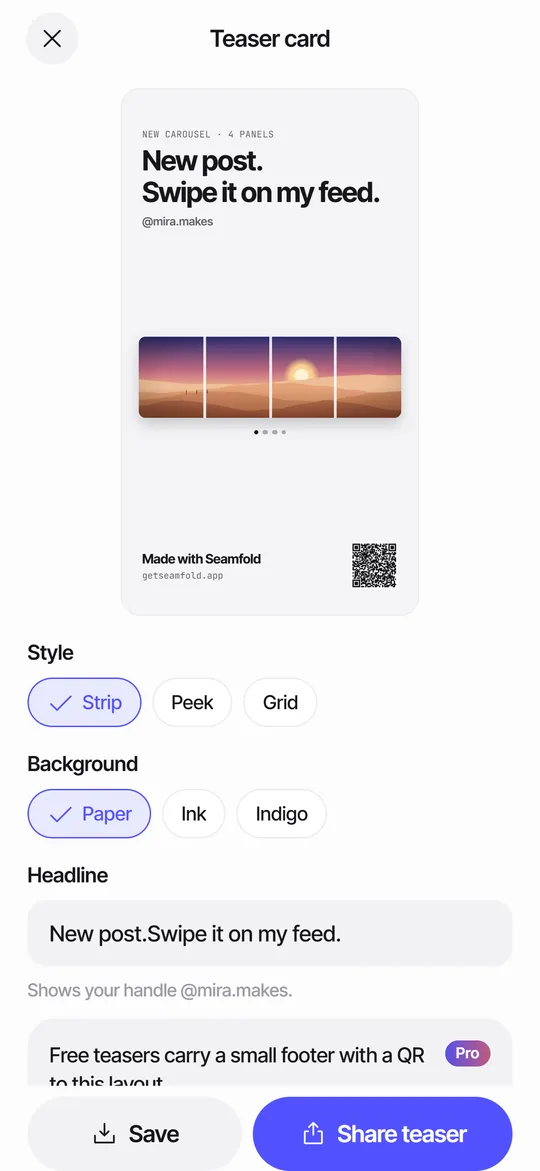 Story Teaser Card for Carousel PostsA 9:16 story card with the full spread, a headline and a QR code to the layout.Feed Layout Ideas That Keep the Grid TidySeven grid layouts with the rule behind each and how to preview them in 3:4 tiles.