 Seamfold
Plan your grid without creating an account
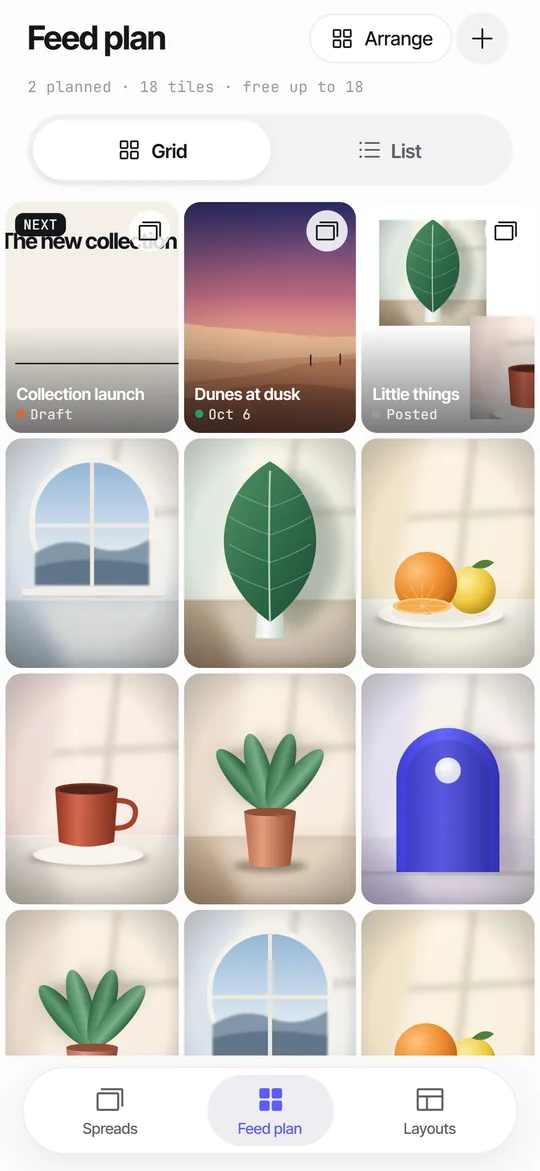
The feed plan is a 3-column grid of 3:4 tiles that puts your planned carousel covers next to photos you already posted. Each plan has a day, a status and a caption draft. Everything is stored on the iPhone, with no login and no upload to a server.
Coming soon to iPhone
What does the grid show?
Tiles are 3:4, the same shape the profile grid uses, with the newest at top left. Spread tiles show a live render of panel 1, a small stacked-panels glyph and a status dot. Posted photos you add are plain tiles, so you can judge the rhythm of colors across the whole grid.
How do I add my first tiles, step by step?
The meta line above the grid counts tiles and planned spreads, and shows that free plans go up to 18 tiles.
- Open the Feed plan tab. An empty plan says Plan your grid.
- Tap Add posted photos and pick a few photos you already published. They become plain tiles.
- Tap the plus button again and choose New spread, or send a finished spread here from the export screen with Add to feed plan.
- Look at the grid. The newest tile sits at top left, as on a profile.
- Open a spread tile to set its title, status, planned day and caption.
How do I rearrange it?
Long press a tile to move it earlier or later, or remove it from the plan. Use the plus button to add posted photos from the picker or start a new spread. A List view shows rows with the cover, title, planned day, status and the first line of the caption.
What does the plan look like in real situations?
A planner earns its place in a handful of small moments. These are the ones people run into most.
| Situation | What to do in the plan |
|---|---|
| Two light covers sit next to each other | Hold a tile and choose Move later until a dark one comes between |
| The post for tomorrow is not ready | Set its status to Draft and the next one to Ready, then post the Ready one |
| You posted something outside the app | Add it with Add posted photos so the grid matches your profile |
| A carousel changed after you planned it | Nothing to do, the tile redraws panel 1 from the spread |
| You scrapped an idea | Hold the tile and choose Remove from plan |
What is in a plan detail?
Each spread has a title, a status of Draft, Ready or Posted, and planned day chips: Today, Tomorrow, or a day stepper. The caption draft has a counter against 2,200 characters and a hashtag count, plus a Copy caption button.
From there you can open the editor, run the swipe test, export or remove the plan.
How do I move many tiles at once?
Tap Arrange above the grid. The hint says Drag tiles to reorder your plan, and you tap Done when it looks right. This is faster than long-pressing one tile after another when you are rebuilding a whole month.
Moving a tile changes only its place in your plan. Nothing happens on social media, because Seamfold has no link to your account.
How does it relate to the cover check?
The grid tiles use the same 3:4 shape as the profile grid, so the cover you plan is cropped the way visitors will see it. Combine the plan with the cover check to avoid surprises on the live profile.
Tips for reading your grid
- Squint at the grid for a second. Does one color dominate? If so, move a contrasting cover into the gap.
- Plan in rows of three, because a 3-column grid shows your posts in threes.
- Keep text covers apart, so two never sit above each other.
- Top left holds the newest tile, so give it the cover you want seen first.
- Plan nine to twelve tiles ahead, no more. A long plan is out of date before you reach the end.
What are the limits?
Free plans hold up to 18 tiles. Pro removes the limit. The plan does not post, remind or sync. It is a place to see your next covers beside the old ones, and it works offline.
How is this different from planning in a notes app or spreadsheet?
A list of titles tells you what to post. It does not show how the covers look together, and rhythm is the whole reason for a grid planner. The tiles here are live renders of panel 1 in a 3:4 frame, so you see colors, crops and text sizes as they will sit on the profile.
A cloud scheduler goes further, with reminders and posting. Seamfold stays smaller on purpose. It has no account, no upload and no sync, which makes it quick to open and nothing to cancel. If you need reminders, pair it with the calendar you already use.
Why no account?
Planners that live in the cloud need a login and an upload of your pictures. Seamfold keeps the plan on the device, in the app's private storage, and Erase everything in Settings removes it. See the privacy page and the guide on planning a feed without an account.
Frequently asked questions
Does the feed plan sync between devices?
No. It is stored on the iPhone only, and no server is involved.
Can the planner post for me?
No. Seamfold never posts. You save the panels and publish yourself.
How many tiles can I plan for free?
Up to 18. Pro removes the limit.
Can I add photos I already posted?
Yes. Use Add posted photos from the plus menu and pick them with the system picker.
How do I reorder tiles in the feed plan?
Tap Arrange and drag tiles, then tap Done. For a single tile, hold it and choose Move earlier or Move later.
Does the plan show the whole carousel?
No. A tile shows panel 1, because that is the only panel the profile grid shows. Open the spread to see the rest.
Keep exploring
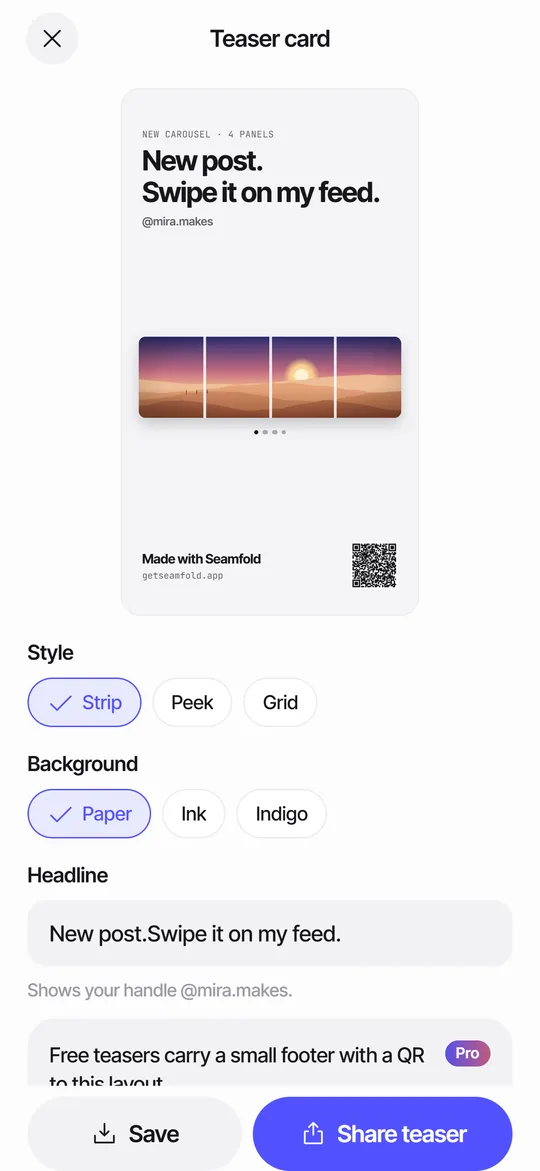 Story Teaser Card for Carousel PostsA 9:16 story card with the full spread, a headline and a QR code to the layout.Feed Planner Without an Account or CloudWhat to look for in a local feed planner and how to plan 3:4 tiles on device.Seamfold Privacy PolicyNo account, no analytics. Photos, captions and plans stay on your iPhone.