 Seamfold
A story teaser that tells people to swipe
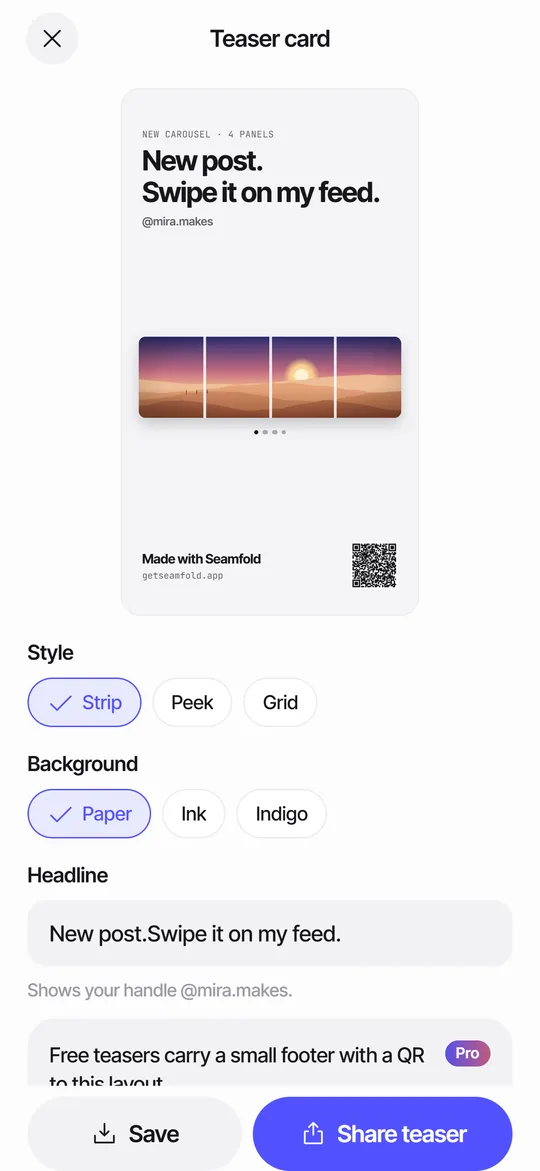
The teaser card is a 9:16 image for stories that announces a new carousel. It shows the whole spread as a strip, carries the line New post. Swipe it on my feed. by default, and ends with a small footer and a QR code. Share it from the same screen or save it to Photos.
Coming soon to iPhone
What styles and colors are there?
Three styles: Strip shows the whole spread across the card with fold lines dashed, Peek shows panel 1 large with panel 2 peeking in beside an arrow, and Grid shows a 3x3 grid with the new cover highlighted. Backgrounds are paper, ink or indigo.
How do I make a teaser, step by step?
The teaser button lives on the Saved screen, so you reach it right after exporting. The card is built from the spread, which keeps the strip and the panel count in sync.
- Finish and save your panels. The Saved screen offers Make a teaser right below.
- Pick a style: Strip, Peek or Grid.
- Pick a background: Paper, Ink or Indigo.
- Edit the headline, or keep New post. Swipe it on my feed.
- Check the handle line. Add your handle in Settings if it is empty.
- Tap Share teaser to send the card and link text, or Save to put the PNG in Photos.
Can I change the words?
Yes. The headline is editable and defaults to New post. Swipe it on my feed. A handle line sits under it, taken from your settings. Keep the headline short, since a story is read in a second or two.
Which style fits which carousel?
Choose by what the carousel does, not by taste.
| Style | Shows | Best for |
|---|---|---|
| Strip | The whole spread across the card, folds dashed | Panoramas, where the picture is the hook |
| Peek | Panel 1 large, panel 2 peeking in, an arrow | Photo sets, where the first image is strong |
| Grid | A 3x3 grid with the new cover highlighted | Accounts with a clear grid look |
When is a teaser worth making?
Use one when a carousel depends on the swipe. A panorama split across four panels looks like a single slide in a story preview, so the teaser shows the whole strip and tells viewers there is more to see. Each export screen offers Make a teaser, so the step is one tap away.
What are a few ways to use it?
- Post the teaser to stories the moment the carousel goes live, so followers who miss the feed see it.
- Use the Strip style for a panorama to show the whole picture and invite the swipe.
- Use Grid when the new cover is part of a color story across your profile.
- Send the card to a friend before you post, with the layout link, to get a second look.
- Change the headline to a date or a short hook if the carousel is a launch.
What is the QR code for?
On free plans the card ends with Made with Seamfold and a QR code. Scanning it opens a layout page. If the app is installed, the link opens Start with this layout, and one tap leads to the photo picker and an editor with the same layout.
The link holds a layout name, a ratio, a panel count and a background color. No photo, name or identifier is included. Pro can hide the footer and the code.
What happens when someone scans the code?
The code opens a link that holds the layout. If Seamfold is installed, the app opens on Start with this layout, which shows a diagram of the layout and the ratio and panel count. One tap on Pick photos leads to the photo picker, and the editor opens with that layout.
If the app is not installed, the link opens a page that shows the layout. The Seamfold app is in development, so the store button appears when it is released. The code carries no photos and no account, only the layout details. If the link is incomplete, the app says so and offers to start from scratch.
How do I share it?
Tap Share teaser to send a 1080 x 1920 PNG and the link text through the share sheet, or Save to Photos. Seamfold does not post to stories for you. You choose the app and publish yourself.
What are the limits?
- The card is a still image. It does not animate or play like a story video.
- Fonts and layout are fixed to the three styles. You choose the words and the color, not the position.
- The footer and QR are always on for the free plan.
- A story app may recompress the PNG when you upload it.
- The teaser screen is reached from the Saved screen after an export, not from the editor.
Is this better than making a story card by hand?
A hand-made card in a design app costs you the time to build the frame, import every panel and place them. Seamfold builds the card from the spread you already have, so a change in the editor shows in the teaser the next time you open it. The trade-off is control: you get three styles, not an empty canvas.
If you want a unique card, use the teaser as a base. Save it to Photos and add your own touches elsewhere.
Frequently asked questions
What size is the teaser card?
1080 x 1920 pixels, the 9:16 story format, saved as a PNG.
Can I remove the Seamfold footer?
With Pro, yes. The footer and QR code can be switched off. Free cards include them.
Does the QR code expose my photos?
No. It encodes only a layout name, ratio, panel count and background color.
Does Seamfold post the story for me?
No. It prepares the image and opens the share sheet.
Where do I find the teaser in the app?
Export your panels first. The Saved screen then offers Make a teaser, and the card is built from the same spread.
Which teaser style is best for a panorama?
Strip. It shows the whole spread across the card with the folds dashed, so viewers see the picture is wider than one slide.
Keep exploring
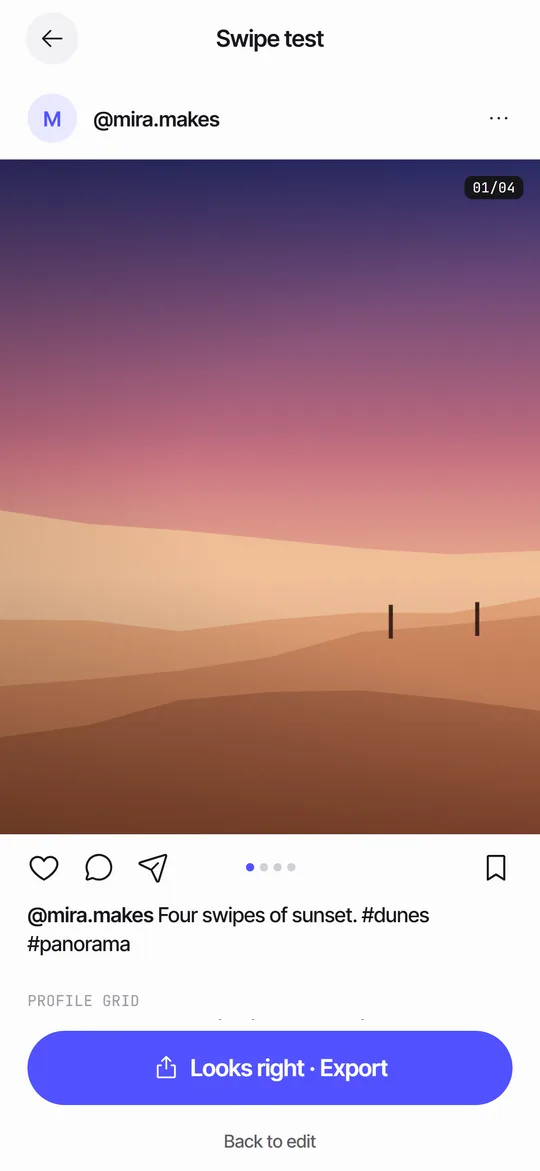 Swipe TestPage through your panels in a post frame and see the cover in a 3:4 grid.
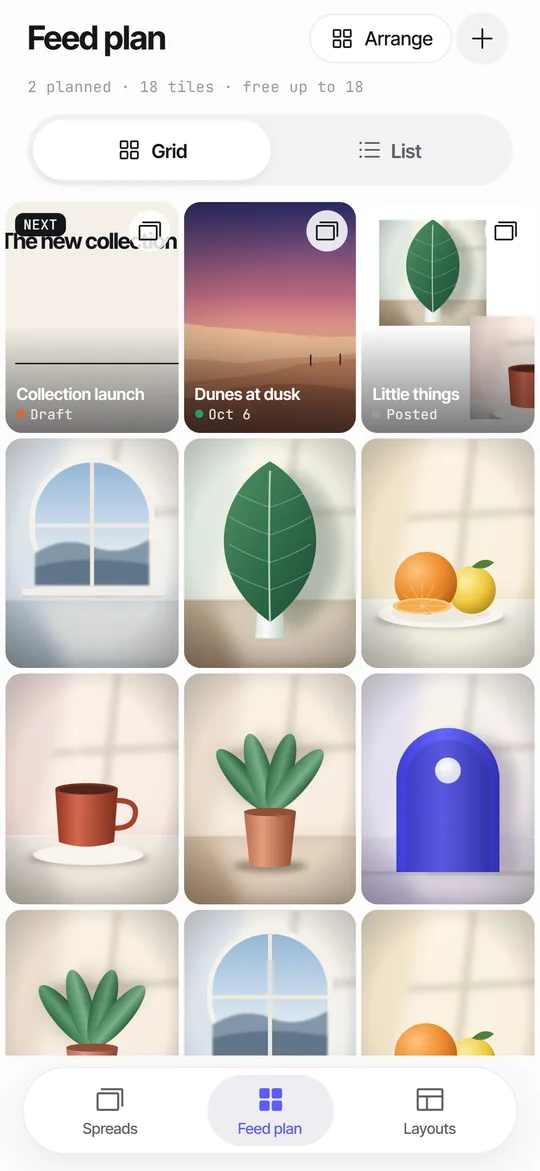 Feed Planner That Stays on Your iPhoneA local 3-column grid of planned covers and posted photos, with dates, status and captions.Seamfold Privacy PolicyNo account, no analytics. Photos, captions and plans stay on your iPhone.How to Make a Seamless Carousel on iPhoneFive steps from one wide picture to a swipe post whose panels line up.