 Seamfold
Why is my carousel blurry?
A blurry carousel almost always comes from one of four things: a source photo with too few pixels for the slide, a file that was saved or screenshotted more than once, the social app's own compression, or a data-saving upload setting. Check the pixel count first, then re-export once at 1080 px wide.
Coming soon to iPhone
What are the most common causes?
Start with the cause that costs nothing to rule out. Look at the original photo on the phone. If it is sharp there and soft on social media, the problem is in the export or the upload. If it is soft in Photos too, the source is the issue.
| Cause | How to spot it | Fix |
|---|---|---|
| Source has too few pixels | Soft in Photos after export, worse the more slides you cut | Use a larger photo or fewer slides |
| Repeated saves or screenshots | Blocky edges, fuzzy text, color banding | Export once from the original |
| The social app compression | Sharp in Photos, softer after upload | Export at 1080 px wide, avoid extra re-crops |
| Upload quality setting | Only some uploads look worse, mostly on mobile data | Turn on the highest-quality upload option |
How many pixels does a slide need?
The social app displays carousel slides at 1080 px wide, as the carousel size guide explains. If your slide is cut from a bigger image, aim for about 1080 px of source per slide. Four slides from one photo need roughly 4,320 px on the long side after the photo is scaled to fill the frame height. A 12-megapixel iPhone photo is about 4,000 px on its long side, so it works for about three or four slides and starts to soften beyond that.
When a panorama is cropped to a tall frame, the crop uses only part of the height, which lowers the real pixel count further. This is why a wide photo cut into six slides can look weaker than the same photo cut into three.
What does repeated compression do?
JPEG-style compression discards detail to shrink the file, and each save discards a little more (lossy compression on Wikipedia). Photos that pass through a messaging app, a screenshot and a re-save arrive with visible damage before the social app even touches them. Text suffers most, because thin strokes turn fuzzy and show halos.
Work from the original. Edit once, export once. If a design app gives a choice of file type, pick PNG for graphics with text and a high-quality JPEG for photos. Seamfold exports PNG panels at 1080 px wide, and a pure single-photo spread without text is cut from the original file to keep the full resolution.
Does the social app always make photos worse?
It re-encodes every upload, and images wider than 1080 px are scaled down. A clean 1080 px file loses less than a huge one that is scaled and compressed, because there is less to throw away. The drop in quality is usually mild for photos and more visible for fine lines, small text and flat color gradients.
How do you fix a blurry carousel, step by step?
- Open the original slide file in Photos and zoom in. Decide if the source is soft.
- If the source is small, reduce the number of slides or pick a bigger photo.
- Re-export from the original in one pass, at 1080 px wide.
- Do not send the files through a chat app or take screenshots of them.
- Upload over Wi-Fi, and check that the social app's upload quality setting is on its highest option. The menu name may change between versions.
- Post, then compare the slide with the original on the same phone.
Why does only the text look soft?
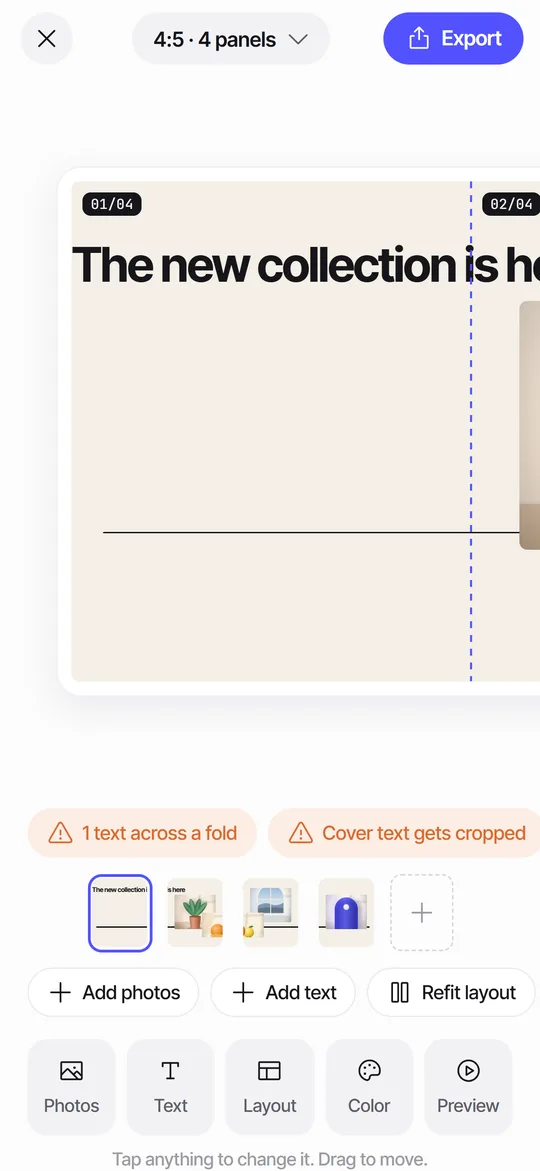
Small text is the first thing to fail. A letter 20 px tall has few pixels to survive compression. Make body text at least 40 px tall on a 1080 px slide and use heavier weights for small words. Avoid thin light-gray text on a photo, since the compression smears it into the background. Keep text away from the folds as well, so the viewer never reads half a word on two slides. The seam check in Seamfold flags text that crosses a fold.
Can a re-crop in the composer blur the image?
Yes. If you pinch to zoom in the composer, the social app crops again, and the result is both blurrier and shifted. This breaks seamless carousels as well, since the folds no longer meet. Keep the composer at the ratio you exported, 4:5, 3:4 or 1:1, and tap the slides in order from first to last.
Is the problem the screen, not the file?
Sometimes. A slide that looks fine on your phone can look soft on a large monitor or a tablet, where each pixel is stretched over more space. The social app delivers 1080 px, so on a big screen even a perfect file looks softer than a print. Judge sharpness on a phone, which is where most carousels are viewed. If you also care about desktop viewers, add contrast and bolder shapes to your design, since edges survive stretching better than fine texture.
Why do panorama carousels look softer than single photos?
Because a panorama spends its pixels on width. A single 4:5 photo from a phone has around 3,000 px on its short side to fill a 1080 px slide, which is far more than it needs. A panorama sliced into four panels needs 4,320 px of width, and a panorama taken in the iPhone Pano mode is often narrow in the other direction, so the scale-up is bigger than expected. If the horizon looks crisp in the middle and weak at the ends, the stitching or the lens edge is the cause, not the social app. Image stitching blends several frames, and the edges of each frame are the weakest part.
Seamfold counts the pixels for you. When a photo has less than 1080 px per panel, the editor shows a chip such as 1 photo may look soft, so you can reduce the panel count before you export.
Does cropping before the composer help?
It does when you crop to the final ratio yourself. The social app then has no reason to crop again, and the folds of a seamless spread stay in place. Crop once, at the ratio you will post, and keep the original in a separate album. If you need a different ratio later, start again from the original, not from the cropped copy, because every crop throws away pixels you cannot get back.
A quick test to find the cause
Post a test slide to a private audience or a private account, then compare. If the test looks sharp, your normal workflow adds the damage. If it looks soft, the source or the export is the problem. Change one thing at a time, otherwise you will not know which change helped.
Habits that keep carousels sharp
- Shoot at full resolution and keep the original files.
- Use 3 to 5 slides for a panorama unless the source is very large.
- Edit once and export once.
- Make text large and bold enough to survive compression.
- Do not screenshot your own design.
- Export at 1080 px wide in the same ratio for every slide.
Frequently asked questions
Why do my carousel photos look blurry after posting?
The usual causes are a small source photo, repeated saves, the social app's compression and a lower-quality upload setting. Export once at 1080 px wide from the original.
What resolution should carousel slides be?
1,080 px wide, with a height of 1,350 px for 4:5, 1,440 px for 3:4 or 1,080 px for 1:1.
Does a panorama get blurrier with more slides?
Yes, if the source is fixed. Each slide gets fewer source pixels, so 6 slides from one photo look softer than 3.
Is PNG or JPEG better for social media?
PNG suits text and graphics. A high-quality JPEG suits photos. Either way the social app re-encodes the upload.
Does Seamfold reduce quality?
Seamfold exports 1080 px wide PNG panels, and it cuts a plain single-photo spread from the original file. It shows a chip when a photo may look soft. It is in development.
Keep exploring
 How to Split a Panorama for a Carousel, With SizesPanel counts, pixel widths and the steps to cut a panorama into a carousel.
 Seam CheckFinds text cut by a fold between panels and moves it for you.How to Make a Seamless Carousel on iPhoneFive steps from one wide picture to a swipe post whose panels line up.